You had noticed That the Send Email task from the SSIS package does not have the option of indicating a user name and password, it will only authenticate using Windows Authentication.
This SSIS email task does not support Gmail SMTP server. Even it does not support any smtp server with username and password.
Here is one SSIS Script executor package example to send email from gmail account. This is a Substitute of SSIS email Send task.
Steps To Send Email with gmail.
Step1: Create Global variables for SMTP server Configurations.

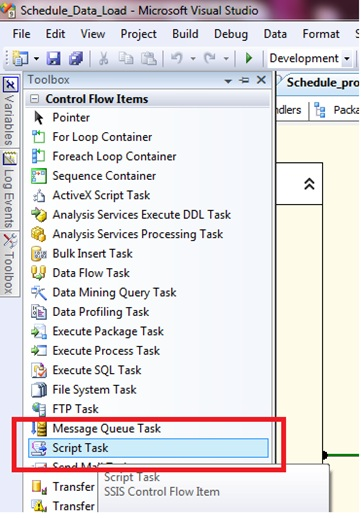
Step2: Drag and Drop Script Task
Step3: Add variables in ReadOnlyVariables

Step4: Click Edit to Write Script and Select Script Language “Microsoft Visual C# 2008”
So this will be our solution developing our own Send Email Function with option for User Credentials.
Now let’s start.

Step5: Write C# script to send email

Here the script to write:
using System;
using System.Data;
using Microsoft.SqlServer.Dts.Runtime;
using System.Windows.Forms;
using System.Text.RegularExpressions;
using System.Net.Mail;
namespace ST_f36d382ef89848a894adeac409e3a7f6.csproj
{
[System.AddIn.AddIn("ScriptMain", Version = "1.0", Publisher = "", Description = "")]
public partial class ScriptMain : Microsoft.SqlServer.Dts.Tasks.ScriptTask.VSTARTScriptObjectModelBase
{
#region VSTA generated code
enum ScriptResults
{
Success = Microsoft.SqlServer.Dts.Runtime.DTSExecResult.Success,
Failure = Microsoft.SqlServer.Dts.Runtime.DTSExecResult.Failure
};
#endregion
public void Main()
{
string sSubject = “[Kalyan]:SSIS Test Mail From Gmail”;
string sBody = “Test Message Sent Through SSIS”;
int iPriority = 2;
if (SendMail(sSubject, sBody, iPriority))
{
Dts.TaskResult = (int)ScriptResults.Success;
}
else
{
//Fails the Task
Dts.TaskResult = (int)ScriptResults.Failure;
}
}
public bool SendMail(string sSubject, string sMessage, int iPriority)
{
try
{
string sEmailServer = Dts.Variables["sEmailServer"].Value.ToString();
string sEmailPort = Dts.Variables["sEmailPort"].Value.ToString();
string sEmailUser = Dts.Variables["sEmailUser"].Value.ToString();
string sEmailPassword = Dts.Variables["sEmailPassword"].Value.ToString();
string sEmailSendTo = Dts.Variables["sEmailSendTo"].Value.ToString();
string sEmailSendCC = Dts.Variables["sEmailSendCC"].Value.ToString();
string sEmailSendFrom = Dts.Variables["sEmailSendFrom"].Value.ToString();
string sEmailSendFromName = Dts.Variables["sEmailSendFromName"].Value.ToString();
SmtpClient smtpClient = new SmtpClient();
MailMessage message = new MailMessage();
MailAddress fromAddress = new MailAddress(sEmailSendFrom, sEmailSendFromName);
//You can have multiple emails separated by ;
string[] sEmailTo = Regex.Split(sEmailSendTo, “;”);
string[] sEmailCC = Regex.Split(sEmailSendCC, “;”);
int sEmailServerSMTP = int.Parse(sEmailPort);
smtpClient.Host = sEmailServer;
smtpClient.Port = sEmailServerSMTP;
smtpClient.EnableSsl = true;
System.Net.NetworkCredential myCredentials =
new System.Net.NetworkCredential(sEmailUser, sEmailPassword);
smtpClient.Credentials = myCredentials;
message.From = fromAddress;
if (sEmailTo != null)
{
for (int i = 0; i < sEmailTo.Length; ++i)
{
if (sEmailTo[i] != null && sEmailTo[i] != “”)
{
message.To.Add(sEmailTo[i]);
}
}
}
if (sEmailCC != null)
{
for (int i = 0; i < sEmailCC.Length; ++i)
{
if (sEmailCC[i] != null && sEmailCC[i] != “”)
{
message.To.Add(sEmailCC[i]);
}
}
}
switch (iPriority)
{
case 1:
message.Priority = MailPriority.High;
break;
case 3:
message.Priority = MailPriority.Low;
break;
default:
message.Priority = MailPriority.Normal;
break;
}
message.Subject = sSubject;
message.IsBodyHtml = true;
message.Body = sMessage;
smtpClient.Send(message);
return true;
}
catch (Exception ex)
{
return false;
}
}
}
}
